A Mac utility from Epiphani Studios

Every leftover in System Settings, pointed out.

Settings Valet reads the two lists macOS keeps, what can control your Mac and what starts by itself, then marks each leftover in red and each keeper in green on the real System Settings screen. You make every change, with the reason in plain English beside it.

macOS 26 on Apple siliconSigned and notarized by Apple1.5 MB download

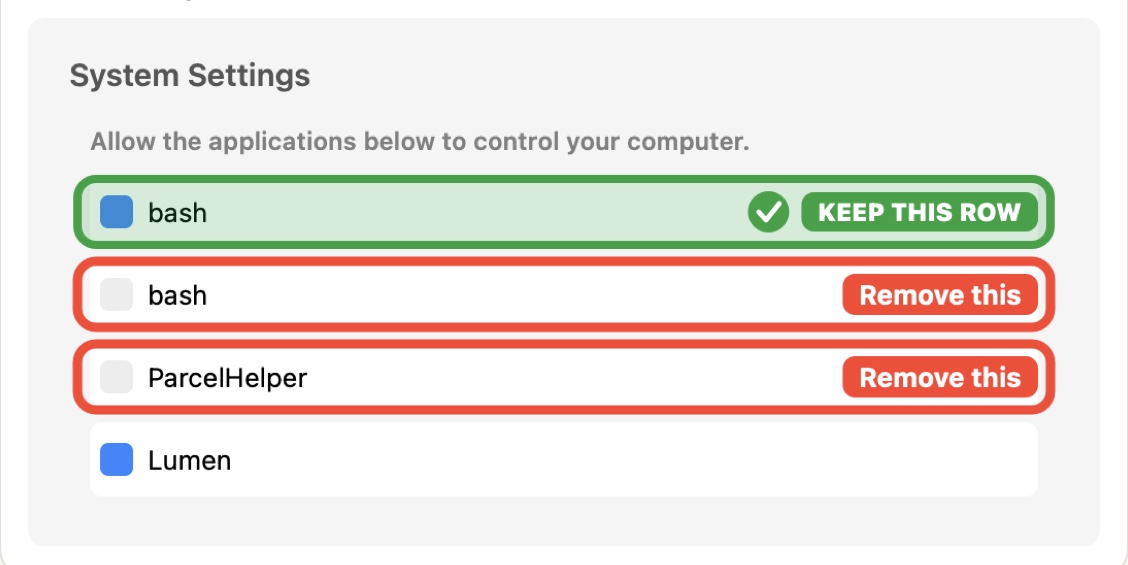
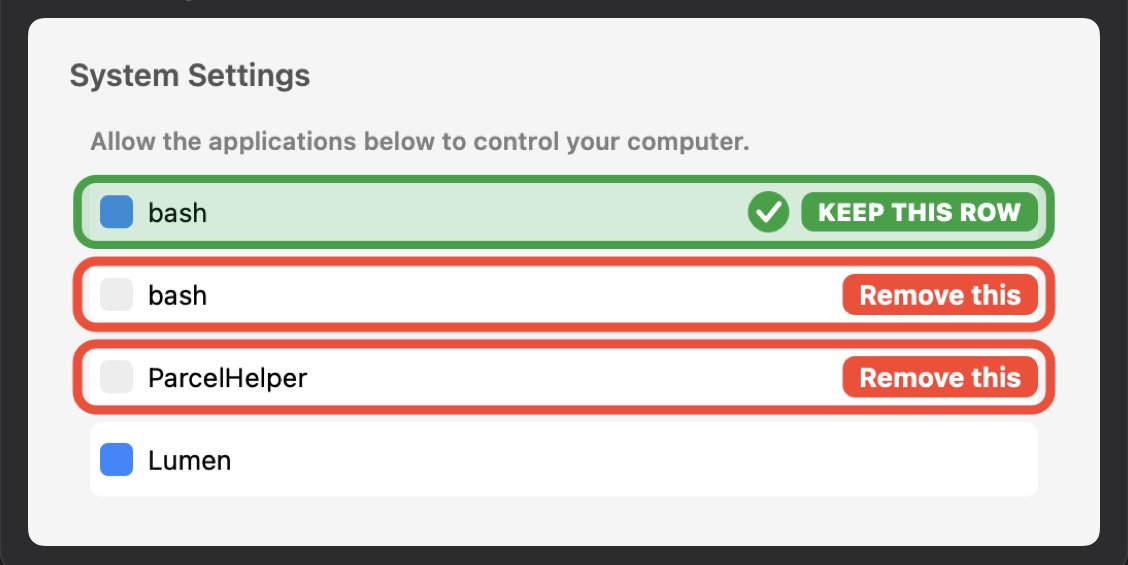
The marks as Settings Valet draws them on System Settings: green on what stays, red on what can go.

Why it exists

The lists in System Settings only ever grow.

Every app you try asks to control your Mac or to start at login. When you delete the app, its row stays. A few years in, Accessibility and Login Items read like an attic: two entries named bash, a helper from an app you deleted last spring, rows with a blank white icon and a switch that is still on.

Names that tell you nothing

System Settings shows a name and a switch. Finding out whether that name still points at anything, and what it does, takes digging through folders you would rather leave alone.

Look-alike rows

The same name can appear twice: one is the program you use every day, the other is an old copy left behind by an upgrade. Turning off the wrong one breaks something you rely on.

Background jobs you did not choose

Allow in the Background fills with helpers and updaters that start every time you log in. Settings Valet names each one in a plain sentence, so you decide with the facts in front of you.

How it works

Four steps, and every switch stays in your hands.

[01] ACCESSIBILITY

See what can control your Mac.

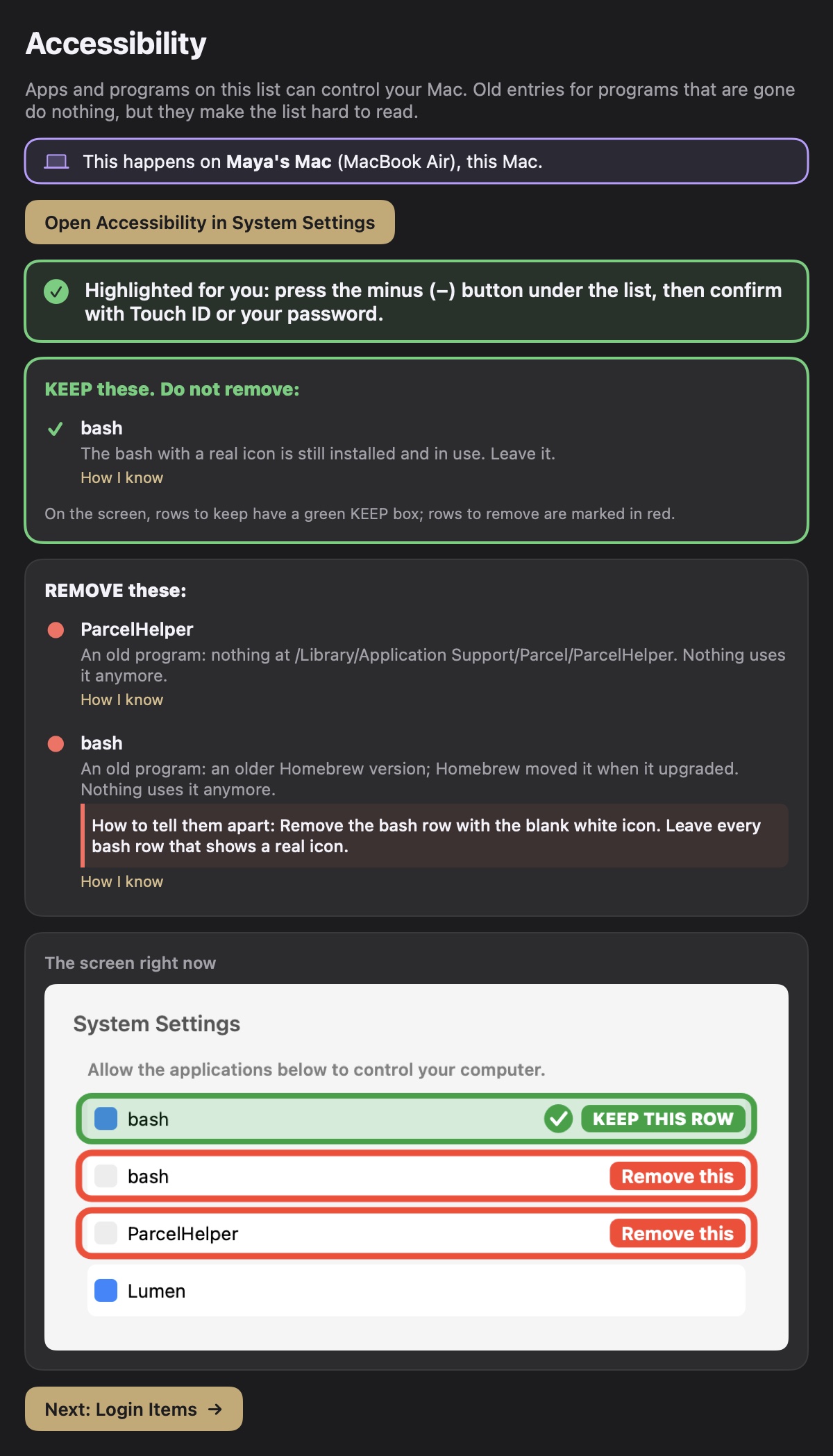
Settings Valet reads the Accessibility list and checks every row against the disk. Apps and programs that are still installed get a green Keep. Rows that point at something gone get a red Remove, with the path it checked one click away under How I know.

  • Opens the right page for you. One button takes you to Privacy & Security, Accessibility, with the first leftover already selected.
  • Tells look-alikes apart. When two rows share a name, it says which one goes in words: the one with the blank white icon.
  • Sees the change land. Press the minus button, confirm with Touch ID, and Settings Valet sees the row go and points at the next one.
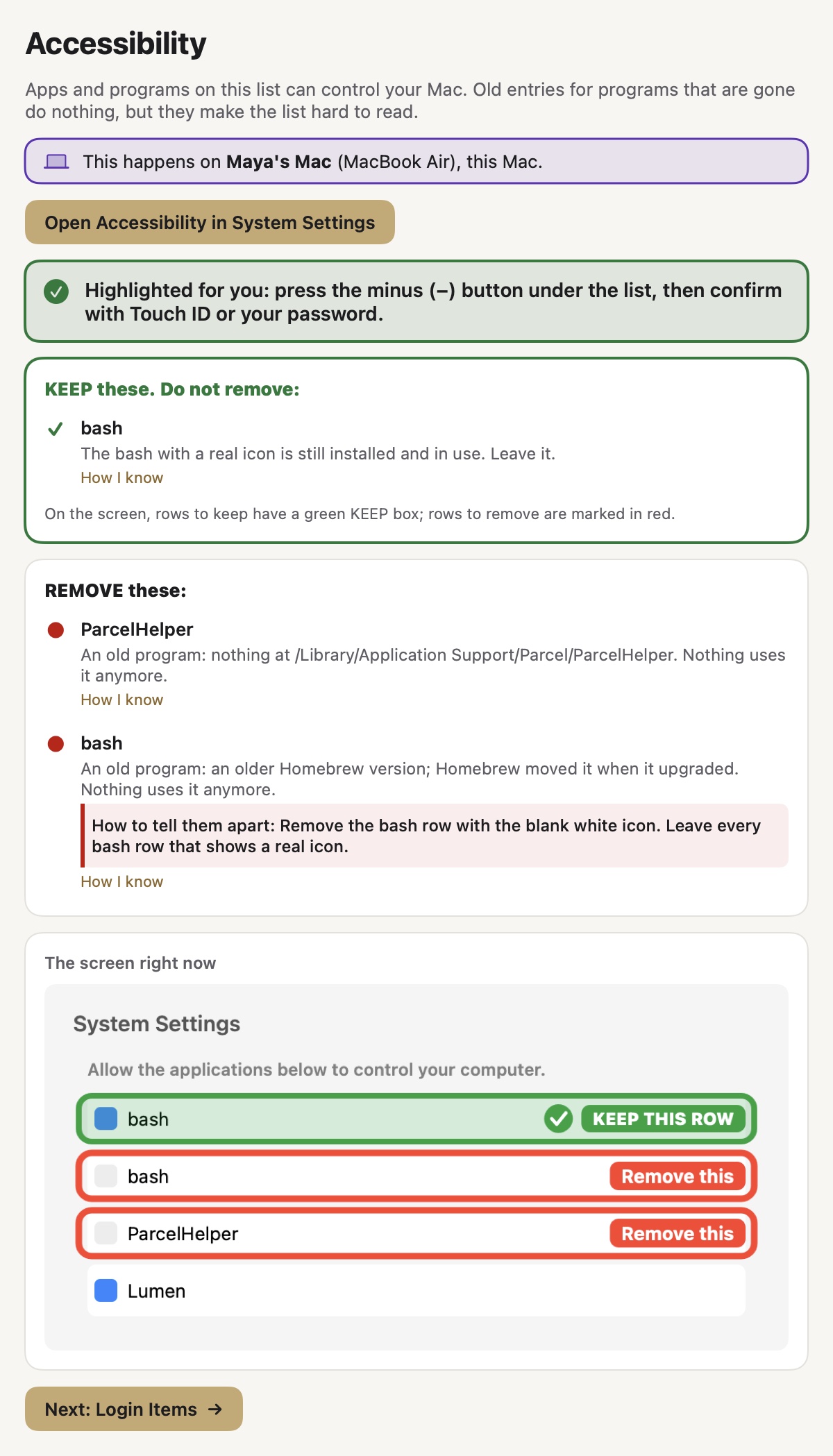
The Settings Valet Accessibility page: a green Keep list with the installed bash, a red Remove list with ParcelHelper and an older bash, and a small picture of the System Settings list with the same marks.The Settings Valet Accessibility page in the dark theme, with the same Keep and Remove lists and the marked System Settings picture.
[02] LOGIN ITEMS

Clear out what starts by itself.

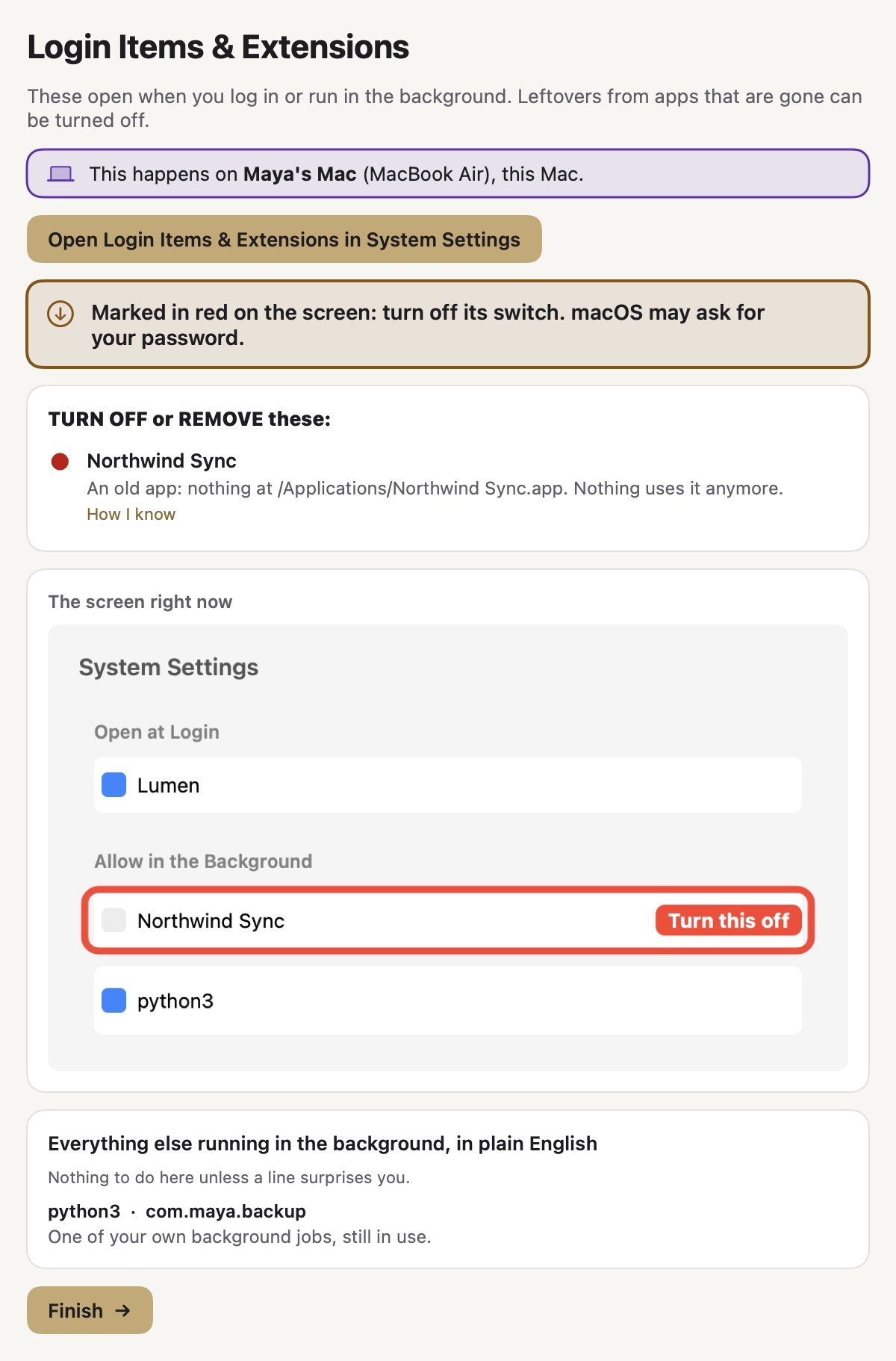
Login Items & Extensions has two lists: apps that open when you log in, and items allowed to run in the background. Settings Valet reads both, marks the ones whose app is gone, and explains every remaining background job in one sentence.

  • Turn this off, marked on the switch. The red mark sits on that row in System Settings; you flip its switch and macOS may ask for your password.
  • Everything else, in plain English. A short list of what is still running, so a surprise line is easy to spot.
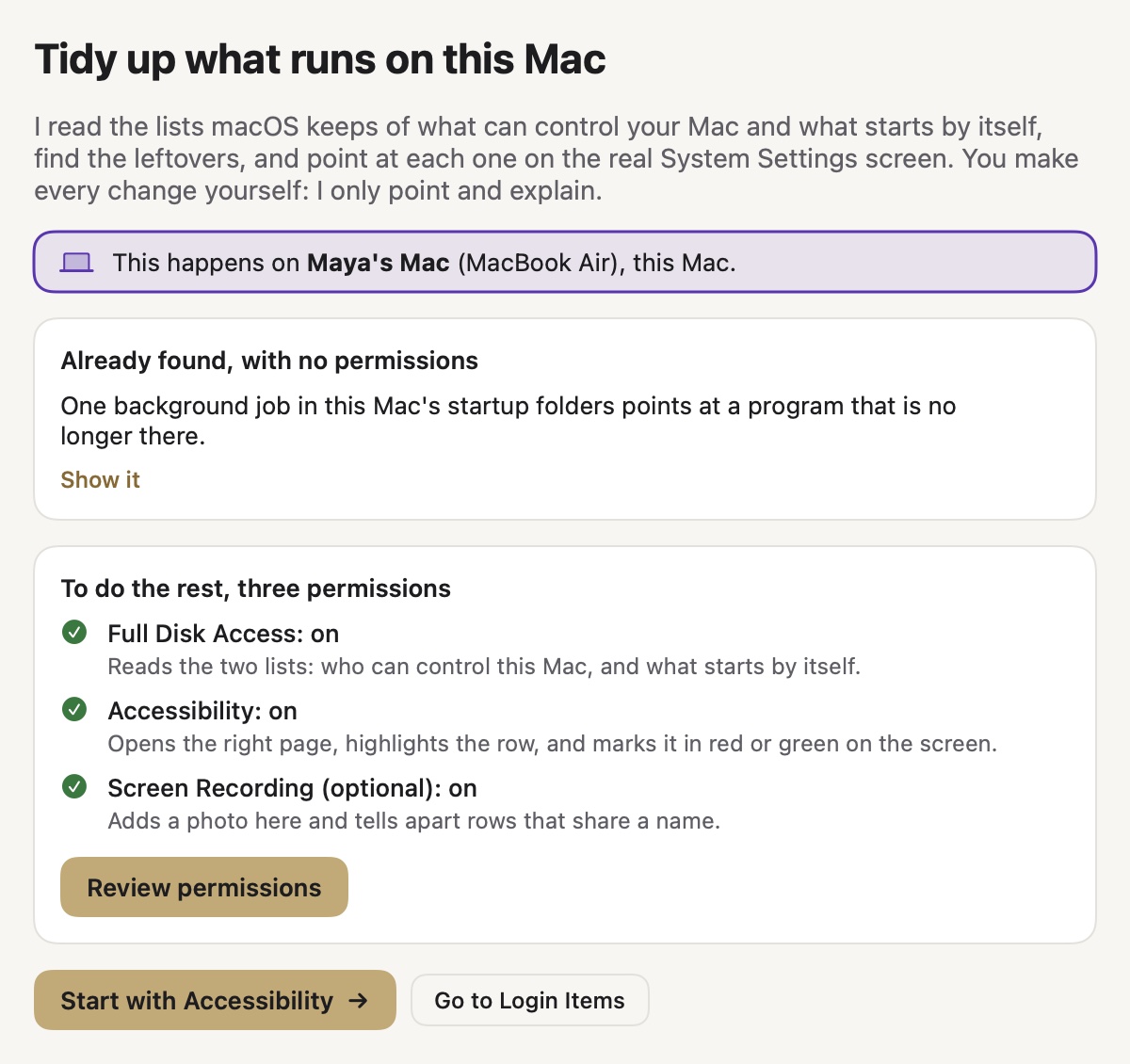
  • Old startup jobs found too. Background jobs in your startup folders that point at a missing program show up on the first page, before any permission is needed.
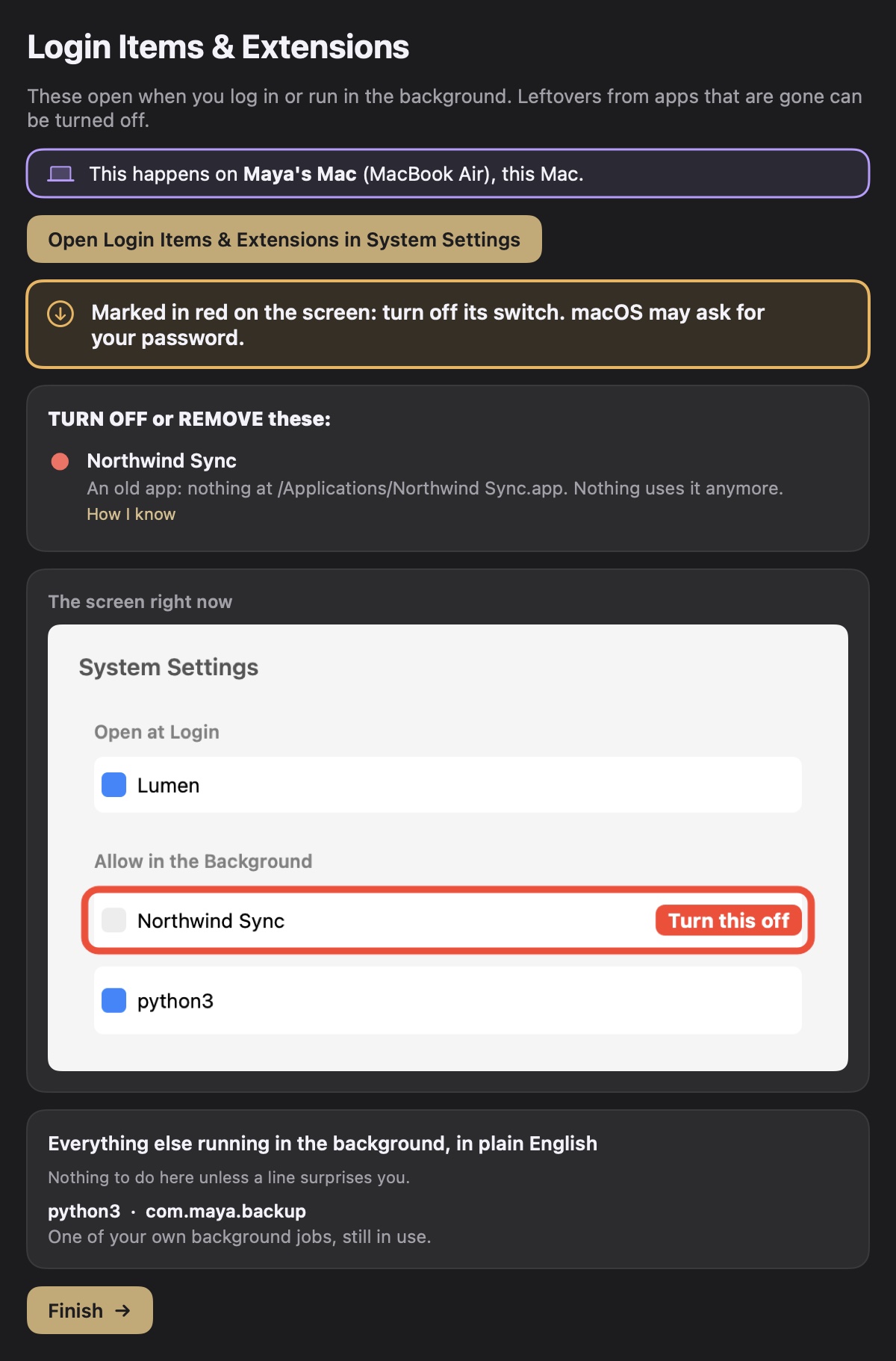
The Settings Valet Login Items page: Northwind Sync marked in red as an app that is gone, Lumen and python3 left alone, and python3 explained as one of your own background jobs.The Settings Valet Login Items page in the dark theme.
[03] MOVE-IN

Moved to a new Mac? Finish the move in minutes.

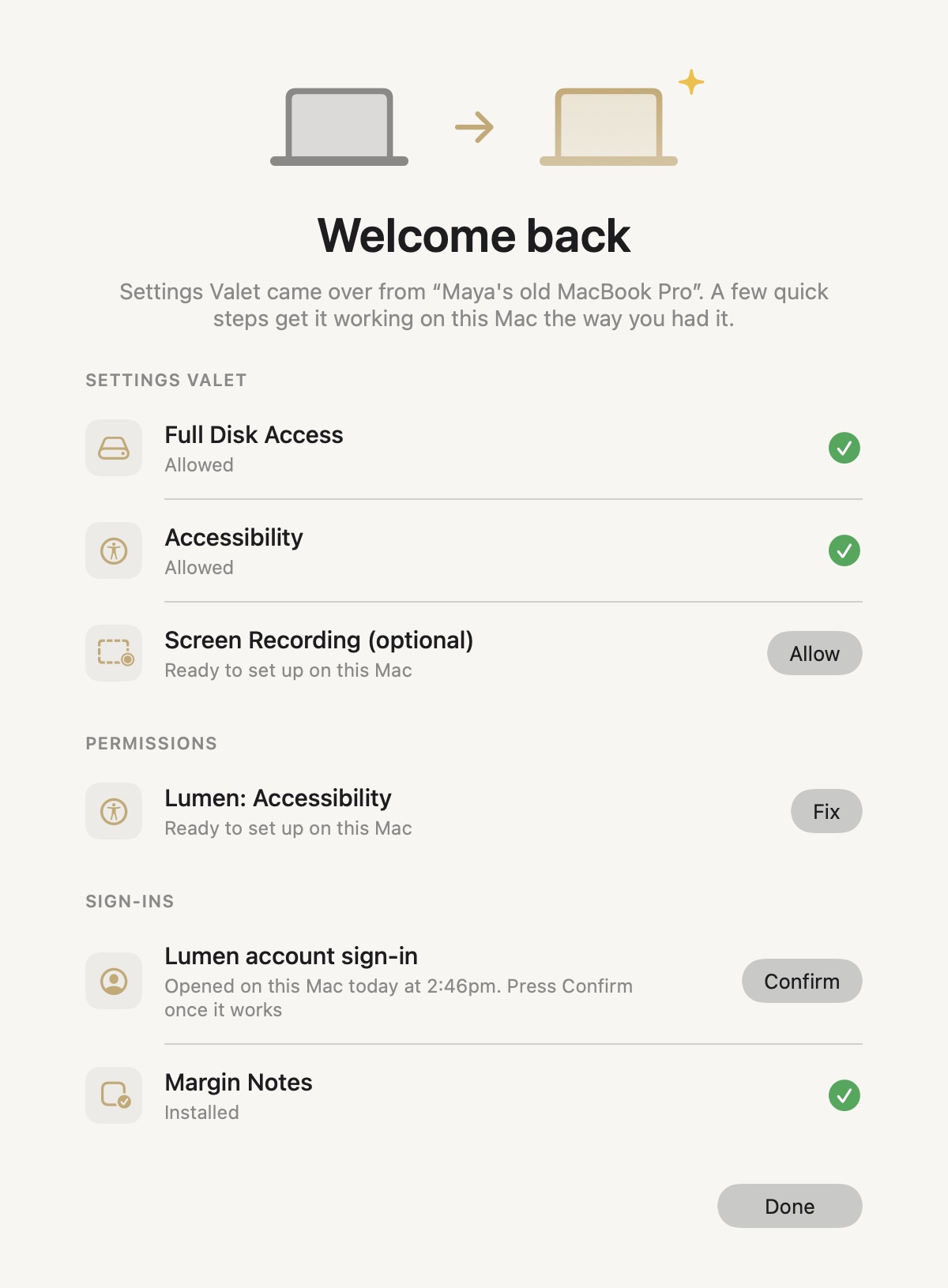
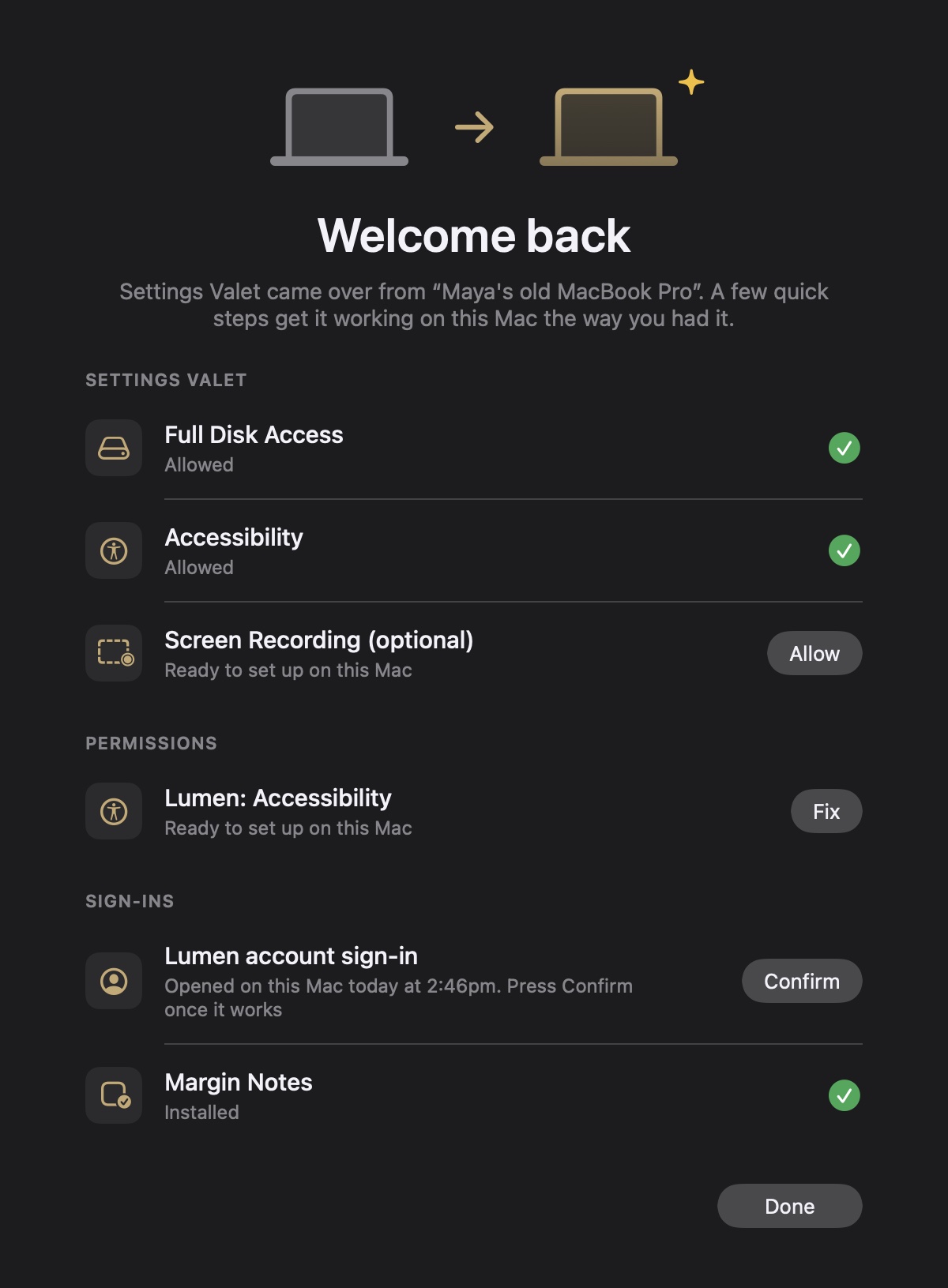
Migration Assistant copies your apps, and then each one needs its permissions and sign-ins again. Move-In notices the move on its own and opens with a checklist: Settings Valet's own permissions first, then every app permission and sign-in on your move list.

  • Three states. Allowed when the check passes, Opened when you have started it and it is waiting for your Confirm, and a Fix button for what is still to do.
  • Times you can read. "Opened on this Mac today at 2:46pm" tells you exactly where you left off.
  • Your move list. A short list in Settings Valet's folder names the apps and sign-ins to check; a Mac setup or IT checklist can drop one in, and Settings Valet checks each by name and opens the right place.
The Move-In page: Welcome back, Settings Valet came over from Maya's old MacBook Pro. Full Disk Access and Accessibility allowed, Screen Recording ready to allow, a Lumen permission with a Fix button, a Lumen sign-in waiting for Confirm, and Margin Notes installed.The Move-In page in the dark theme.
[04] YOUR CALL

It points and explains. You click.

Settings Valet opens the page, selects the row and draws the mark. The minus button, the switch and the password prompt are yours, as macOS designed them. That keeps you in charge of your own Mac and keeps every change in the place you already know how to undo.

  • Start anywhere. Begin with Accessibility or jump straight to Login Items.
  • A clear finish. The last page confirms both lists are done and nothing needs a restart. An app you still use asks again if it ever needs a permission back.
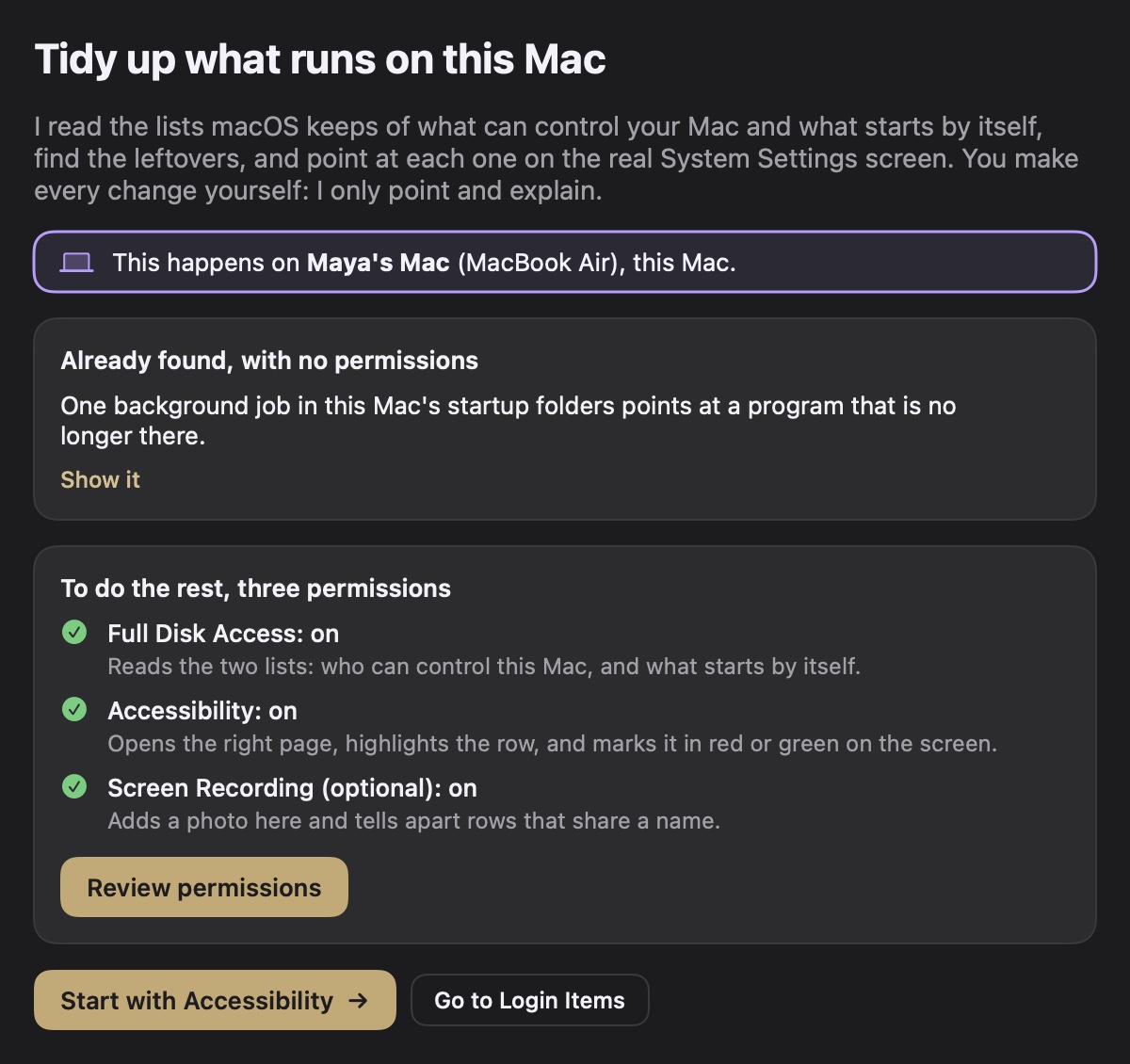
The Settings Valet start page: Tidy up what runs on this Mac, one background job already found, and the three permissions with what each one is for.The Settings Valet start page in the dark theme.
What the lists are

Four places a Mac remembers what you once allowed.

macOS keeps these lists so an app you trust keeps working after a restart. They are worth a look once or twice a year, and after any move to a new Mac.

Accessibility

Privacy & Security › Accessibility

Apps on this list can click, type and read what is on screen for you: window managers, launchers, automation tools, remote-control apps. Each one earned its place when you allowed it. When the app is deleted, the row stays, and so does its switch.

Settings Valet checks each row against the program it names and marks the ones that point at nothing.

Open at Login

General › Login Items & Extensions

Apps that open by themselves when you log in. A short list here means a faster start to your day and fewer icons in the menu bar you did not ask for.

Settings Valet marks entries whose app has been removed, so the list shows only what you still use.

Allow in the Background

General › Login Items & Extensions

Helpers and updaters that run without a window. Many belong to apps you use every day; some belong to apps you removed long ago and still start each time you log in.

Settings Valet names every one in a sentence and marks the leftovers on their switches.

Startup folders

LaunchAgents and LaunchDaemons

Background jobs installed as small files in your Library folders, the oldest way a Mac starts things for you. They do not always appear in System Settings, which is why a leftover here is easy to miss.

Settings Valet reads these folders on its first page, before it asks for any permission, and shows any job that points at a missing program.

A closer look

Every mark comes with its reason.

Settings Valet shows its evidence for each row, so you can agree with it before you touch a switch.

Close up of the System Settings Accessibility list as Settings Valet marks it: a green KEEP THIS ROW box on the installed bash, red Remove this boxes on the blank-icon bash and on ParcelHelper, and Lumen left unmarked.The same marked System Settings list, shown in the dark theme page.
  1. Keep, in greenRows for programs that are still installed and in use. The same green box sits on that row in System Settings.
  2. Remove, in redRows that point at something gone. ParcelHelper's folder is empty; the older bash moved when Homebrew upgraded it.
  3. How I knowBeside every row in the app: the path Settings Valet checked and what it found there.
  4. How to tell them apartWhen names match, a single line says which row goes: the one with the blank white icon.
  5. The screen right nowThis picture sits in the app beside the lists, so you can match the marks to System Settings at a glance.
How it compares

The native path, with a guide beside you.

System Settings already holds every list. Cleaner apps add their own window on top. Settings Valet keeps you in System Settings and adds what the lists leave out: a mark on each row and the reason for it.

Settings ValetSystem Settings aloneCleanMyMac
PriceFreeIncluded with macOSStarting at $3.33 a month1
Where you make the changeIn System Settings, with macOS's own switch, minus button and password promptIn System SettingsInside CleanMyMac: Performance, then Login Items, then disable2
What each row tells youA red or green mark on the row itself, the reason in plain English, and the path it checkedA name, an icon and a switchA list of login items to disable2
Lists coveredAccessibility, Open at Login, Allow in the Background and the startup foldersEach list on its own pageLogin Items, in its Performance module2

1 cleanmymac.com, "Pricing: Starting at $3.33/month", read 14 October 2026. 2 MacPaw, How to remove startup items: "Go to the Performance module in the sidebar and click on Scan", then "Select View All Tasks and locate Login Items", read 14 October 2026.

Who it is for

Anyone whose Mac has been around for a while.

You have tried a lot of apps

Launchers, window managers, screen recorders, sync tools. Each one asked for a permission or a login item, and each trial left a row behind. Settings Valet clears them in one sitting, with a reason for every mark.

You just moved to a new Mac

Migration Assistant brings everything across, including the old leftovers and the permissions every app now needs again. Move-In walks you through the permissions, and the Accessibility and Login Items pages clear what came along for the ride.

You look after someone else's Mac

A parent's laptop, a partner's desktop, the family computer. Settings Valet tells you in plain English which entries matter and which can go, so you can help with confidence and explain each change as you make it.

You set up Macs for a team

Drop a move list into Settings Valet's folder and every new Mac shows the same checklist: the permissions and sign-ins your tools need, each with a Fix button and a Confirm once it works.

What it touches

Read, mark, explain. Your hand on every switch.

Settings Valet asks for three permissions and tells you what each one is for, on the first page, before it does anything.

Full Disk Access: to read

macOS keeps the Accessibility list and the login and background records in protected files. Settings Valet reads them and leaves them exactly as they are.

Accessibility: to point

Used to open the right page, select the row and draw the red and green marks over System Settings. The minus button and the switches stay yours.

Screen Recording, optional: to compare icons

A picture of the System Settings window alone, kept on your Mac. It shows you the screen beside the list and tells apart rows that share a name.

Explanations: rules first

Built-in rules explain most rows; Apple's on-device model covers more on your Mac. For anything left, Settings Valet shows you the names it would send to our explanation service and asks first.

Usage counts stay on your Mac

Page visits and button presses are counted in a small file in your Library folder, which you can read and share with us when you want help.

Signed, notarized, kept current

Every build is signed with our Developer ID and notarized by Apple. Updates come from updates.belstone.com and are checked for the same signature before they install.

Opens from the apps you already use

One link to the right page.

Settings Valet opens from a link, so other apps can send you to the page that fixes what they found.

Questions

Answered plainly.

Will Settings Valet change anything on my Mac by itself?

Every change is yours. Settings Valet opens the right page in System Settings, selects the row and marks it. You press the minus button or turn the switch off, and macOS asks for your password or Touch ID, the same as if you had found the row yourself.

What if it marks something I still use?

A row is marked for removal when the program or app it points to is gone from the disk, and How I know shows the path it checked. If an app you use asks for a permission again later, macOS shows its usual prompt and you allow it in one click.

Why does it ask for Full Disk Access?

macOS keeps the Accessibility list and the login and background records in protected files. Full Disk Access lets Settings Valet read them. It reads them and leaves them as they are.

Two rows have the same name. Which one goes?

Settings Valet checks where each one points and, with the optional Screen Recording permission, looks at the icon System Settings draws: a leftover shows the blank document icon, a live program shows its real icon. It marks that row on screen and tells you which one in words.

What is the Move-In page?

After you move to a new Mac, Move-In checks Settings Valet's own permissions and every app permission and sign-in on your move list, and marks each one: allowed, opened and waiting for your Confirm, or still to do, with a Fix button that opens the right place. It appears by itself the first time Settings Valet opens on the new Mac.

What does it send over the internet?

Explanations come from built-in rules first, then Apple's on-device model on your Mac. For a row neither recognizes, Settings Valet can ask our explanation service; it shows you the names first and sends them only after you say yes. It also checks updates.belstone.com for new versions.

What does it cost and what does it run on?

Settings Valet is free. It runs on macOS 26 or later on a Mac with Apple silicon.

Pricing
Free

The whole app: Accessibility, Login Items, Move-In, the on-screen marks and the plain-English explanations. Download it, tidy your Mac, and keep it for the next time a list fills up.

Get Settings Valet

Every row marked, every reason in plain English.

Download for Mac

macOS 26 or later on Apple silicon. Drag it to Applications and open it. What you are downloading, and how to install it.